The docs site and its tools, available offline
When the network drops, the page you most need is often the one that will not open. On a flight, in the mountains, or in a new country before you have found a SIM, that is an inconvenience. Where the network is cut, throttled or blocked, the same situation costs far more.
From 4 to 6 September we were at Global Gathering 2026 in Estoril, Portugal. Alongside our booth on the last day we joined the Circles, where we talked about how the privacy material on the docs site is written and layered. The conversation kept returning to one premise: the moment a reader needs these pages is not reliably a moment with a working connection.
Responses at Global Gathering
The responses were almost entirely positive. War, government interference and uneven distribution of network resources have different causes, and each leaves people unable to reach the information they need at the moment they need it.
Offline reading already had a section in the tools post at the end of August, where we treated it as a convenience for travellers. After those conversations it became the main direction for the docs site, and the features added since have been built around it.
Pages stored as you read
Opening the docs site in an ordinary browser stores only the offline reading page and the styles it needs, about 1 MB, so there is somewhere to land with the network off.
The core chapters for that language follow in the background once you pick a reading language on the home page or open a second page in the same language. At the time of writing those were the concepts, tools, advanced and regional chapters, plus the four utilities used during an outage: 56 pages in English, roughly 12 MB of text. The extra step is deliberate, so that someone who reads one page and leaves never spends 12 MB of mobile data.
A language is only downloaded once you switch to it, so a device holds only the languages actually read. Pages visited afterwards are stored too, and a switch on the offline reading page turns that off.
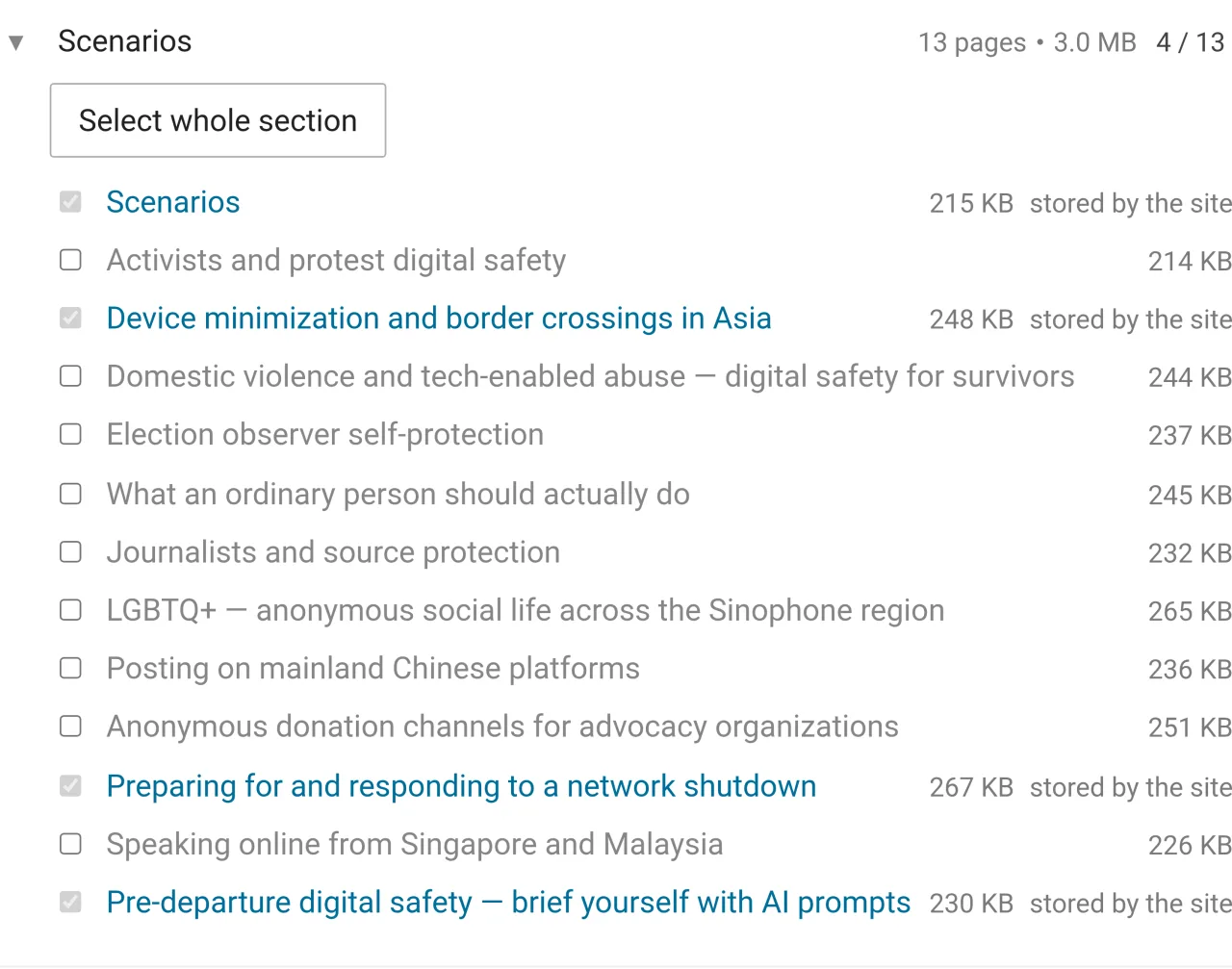
Scenario pages for journalists, activists, LGBTQ readers and domestic abuse are excluded from that prefetch and only stored if a reader opens one. Their presence on a device can itself be a signal, so keeping them is the reader's decision.
Saving the whole site before a trip
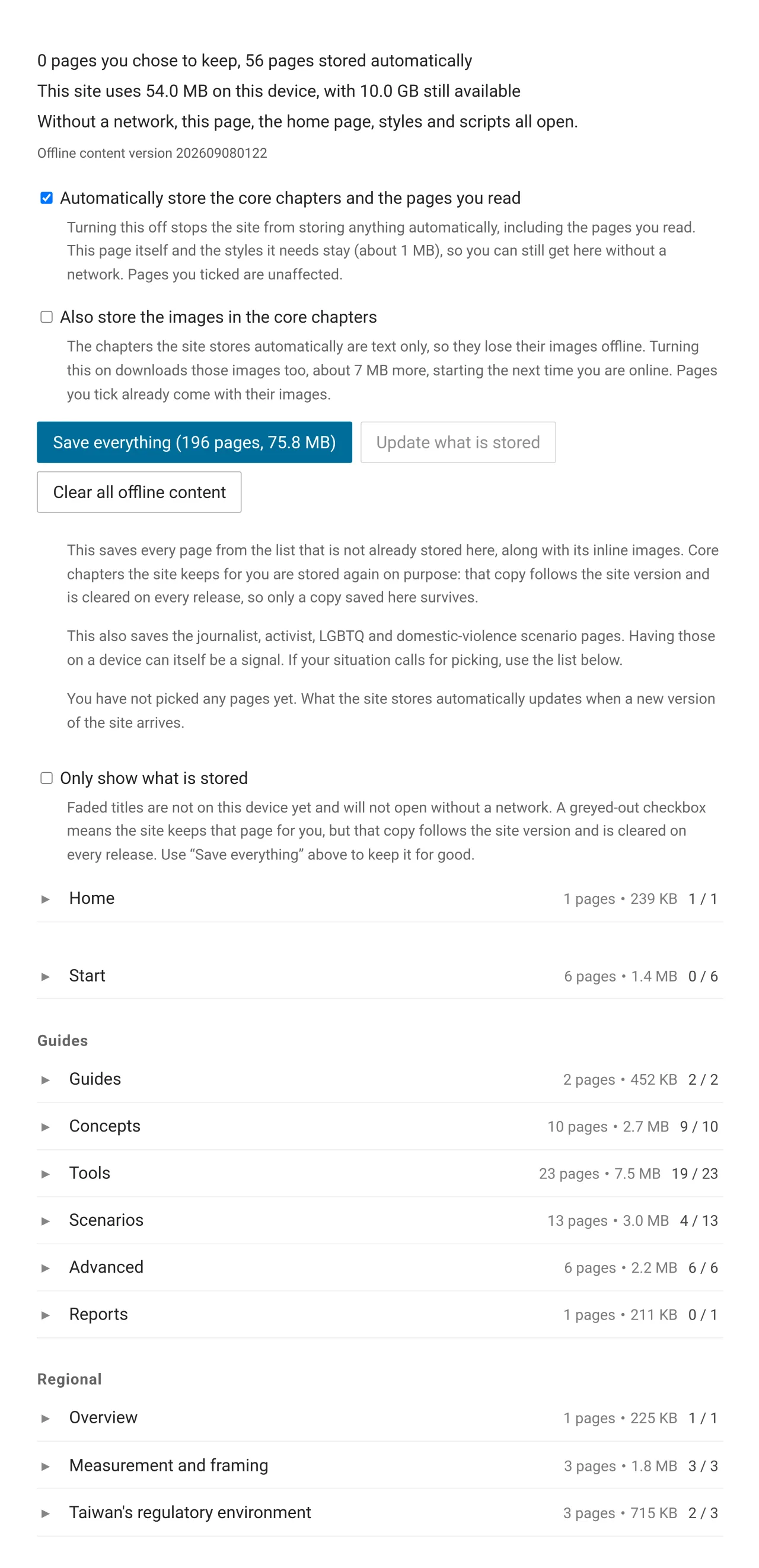
The Save everything button on the offline reading page stores every page in the current language, 196 pages in English at the time of the screenshot, enough for a flight, a train, or any stretch of a journey without coverage.
What that button stores survives a site release, while the chapters the site stores automatically are cleared and re-downloaded on each release. It handles one language at a time, so carrying all three means pressing it once on each language's offline reading page.
The automatically stored chapters are text only and lose their images offline. A separate option downloads the inline images of the core chapters as well, about 7 MB more, and it is off by default because most readers are on mobile data. Pages a reader ticks individually always come with their images.
To carry only part of the site, expand a chapter, tick pages, and apply the change. Start from who you are also has a one-press button that stores every page along that reading path.
Clearing everything before a border
Clear all offline content on the same page removes what the site stored and what the reader picked, and switches automatic storage off, so pages read afterwards no longer stay on the device. Turning the switch back on restores the behaviour.
The clear button exists for a reason as concrete as the one behind Save everything. When a device may be inspected, a complete anonymity and privacy guide sitting on it is something you have to explain.
The offline reading page itself and the styles it needs, about 1 MB, are outside the switch and come back the next time you are online. The moment you want to clear a device, or check what is still readable, is often a moment with no connection, and without that page all that is left is the browser's error screen. What the button does and does not reach is set out on the offline reading page.
Tools with no installation
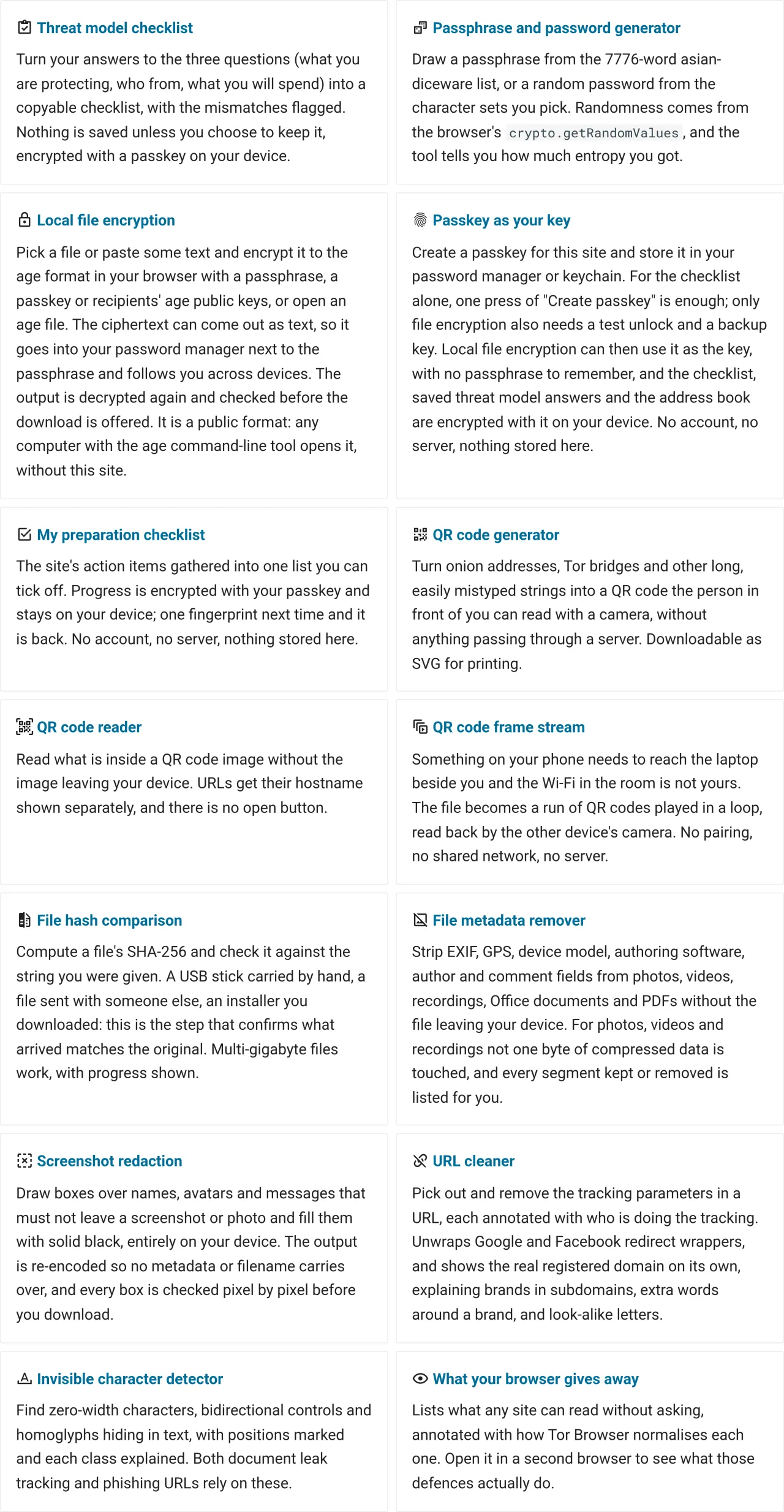
At the time of writing the utilities section held fourteen tools: a threat model checklist, a passphrase and password generator, local file encryption, a passkey page, a preparation checklist, QR code generation, reading and frame streaming, file hash comparison, a file metadata stripper, screenshot redaction, a URL cleaner, an invisible character detector, and a page listing what a browser gives away.
Each tool's code and data are stored alongside the page that carries it and keep working with the network off. The QR code generator, reader and frame streamer plus the passphrase generator are prefetched with the core chapters, because they get used during an outage. The rest are ticked individually on the offline reading page.
Skipping installation removes constraints that are otherwise hard to work around. A borrowed laptop, a public machine or an organisation-managed device that forbids new software all work without asking anyone for permission. Windows, macOS, Linux, Android and iOS behave the same, as long as there is a browser. Nothing new appears in the device's app list, where one more privacy app would itself be a signal. Nor does anyone end up carrying a three-year-old copy with an already-fixed problem still in it.
A tool that keeps working with the network off is also evidence that it is not sending anything out. To check for yourself, the developer tools in any browser have a network tab that lists every request a page makes. Run one piece of data through any tool and watch whether that list moves.
The docs site as a home screen app
Browsers have long been able to add any website to a phone's home screen or a computer's application list, and few people use it. Once added, the site has its own icon and window, opens like any other app, and never goes through an app store.
For offline reading the gain is the entry point. When the network is gone, people look for the icon rather than thinking "open the browser, find the bookmark, which folder was it in". A minute of setup turns it into one tap. Installation steps for Android, computers, iPhone and iPad, and the first-time catches such as an iPhone app keeping its offline content separate from Safari, are in the install section of the offline reading page.
Once installed there is no separate update to manage: when the site ships a new version the same update card appears inside the app, and removing it works like removing any other app.
Installing leaves an icon on the device, which is the opposite of the no-installation-trace point in the previous section. If a border crossing may involve an inspection, skip it: opening the site in a browser reaches the same offline content, at the price of finding the bookmark yourself. Tor Browser does not offer this, for the same reason it stores nothing offline.
Technical details
How the Service Worker stores and updates offline content, why the site's passkey needs no account and no server, why local file encryption uses age, and the three mistakes we made along the way are covered in a separate article on the community site, Technical Design of Offline Reading and Local Encryption on the Docs Site.
Prototype status and the feedback we want
The tools are still basic components. Each does one small thing, none of them chain into each other, and there is no packaged workflow an organisation could adopt as it stands.
Whole-site offline reading is a working prototype. The core mechanism runs in production, while the prefetch boundaries, the granularity of clearing and the entry point after installation are all still moving.
Turning it into a finished product or service needs more input on what people expect from something like this:
- Which pages you want to carry offline: the prefetch is currently split by core chapter, and real needs may differ
- What your offline situation looks like: how much warning you get, what becomes risky to leave on a device, what has to happen first once connectivity returns
- What a tool lacks in your situation: an unrecognised field, a format that will not open, or an explanation that does not land
- Where passkeys get stuck: the wrong storage location at creation, a device that will not open the vault, or a page that does not explain itself
Anything you would rather not attach your name to can go to the anonymous address below.
Channels
- Real-time discussion: public Matrix room (home server
im.anoni.net, link on the community tools page) - Anonymous tips: [email protected] (GPG key)
- Source and issues: anoni-net/docs